---
description: Steps to connect Your WooCommerce Store with Artisan Furniture
---
# Integrating Artisan Furniture into Your WooCommerce Store : A Step-by-Step Guide
Login into your WooCommerce Account ([https://{domainname}/wp-admin/](https://{domainname}/wp-admin/)).
Login with your credentials.
**Access the Setting Section:**
In your Wordpress Dashboard, Navigate to WooCommerce Section.
Here are the steps to create API key in your WooCommerce Account
* Go to WooCommerce
* Click on Setting.
* Go to Advanced.
* Click on REST API.
After that click on the Add Key.
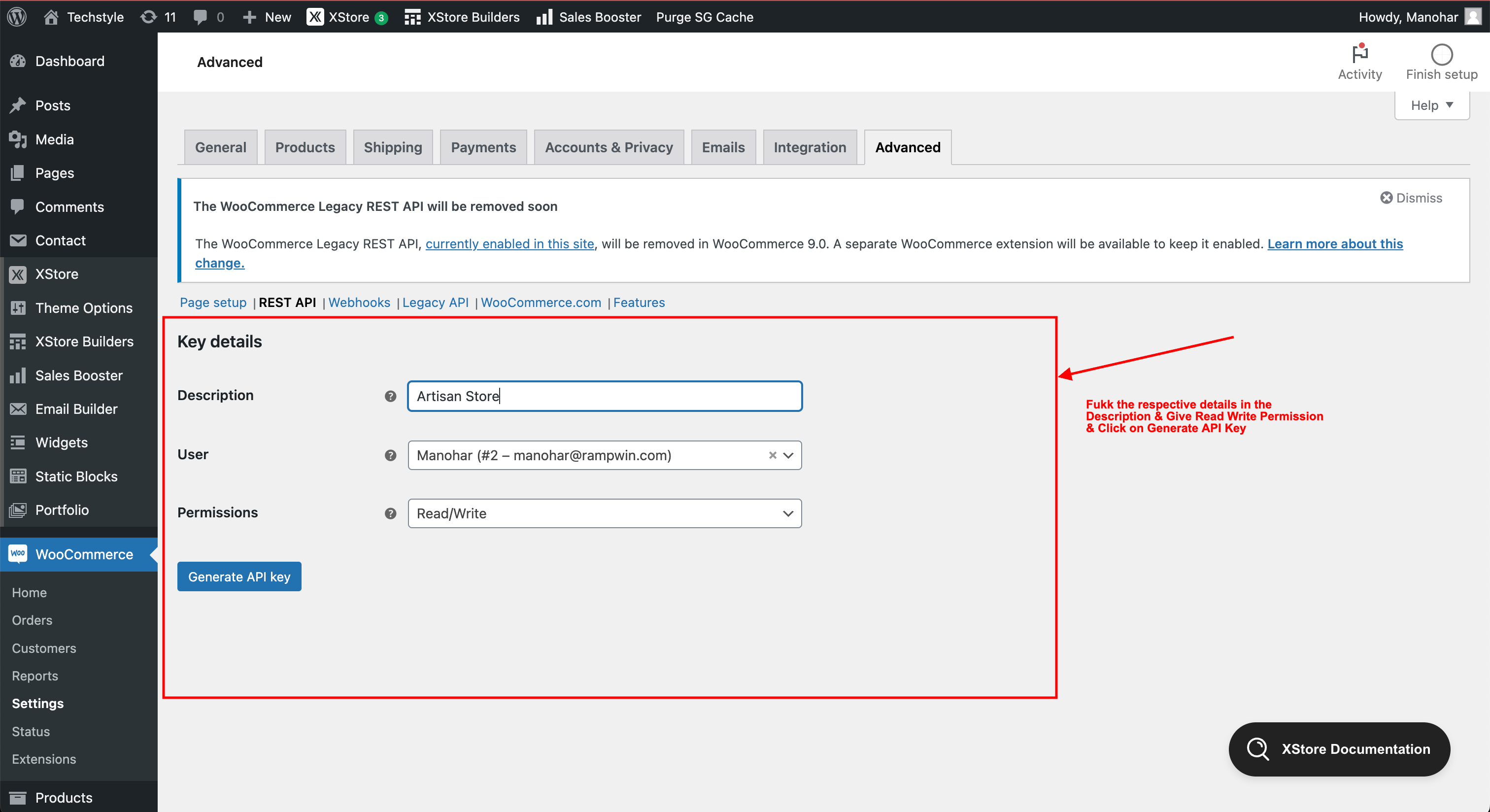
Fill the Details and click on Generate API Key
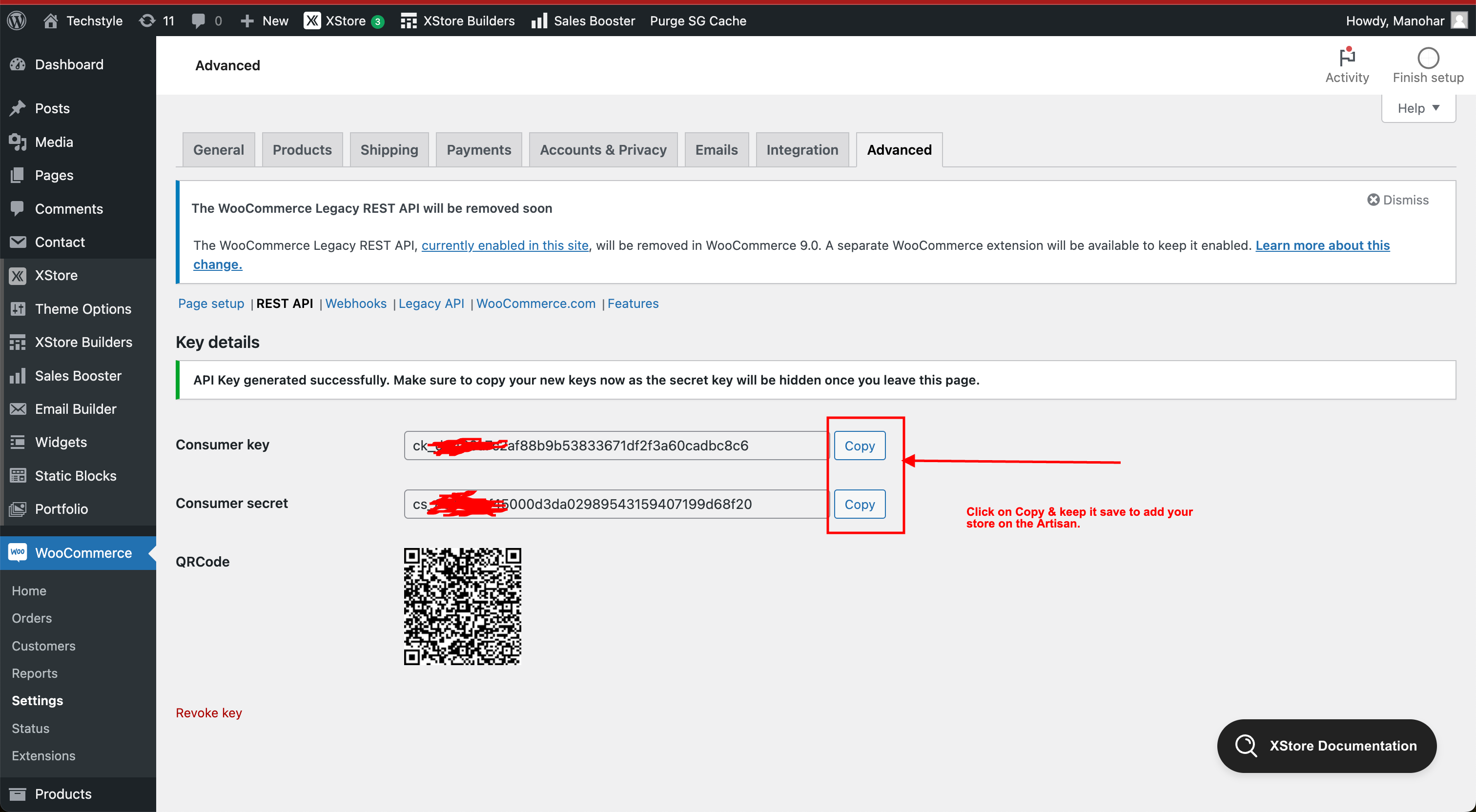
Copy your Consumer Key & Consumer Secret.
Here are the steps to add your WooCommerce into Artisan Flo.
Click on the button Add Store & then Click on the WooCommerce Icon.
After click on the WooCommerce Icon you will get below popup.
In the store URL you have to enter your website URL.
After store has been added you will see below page.